
- Training
- Service
- Promotion
- Schedule
- Testing Center
- News
- Contact
7/2/2021


.jpg)
A new feature has been added to Microsoft Forms. You can now add a file attachment control in your template, so users are able to attach their own files to your form. The attached files are then encoded and saved with the form data.
To add an attachment to a form, you just need to add a new question, and then specify the type of File Upload control.
The process is simple. Within your form:
.png)
.png)
With your new control added, click OK to complete your form.
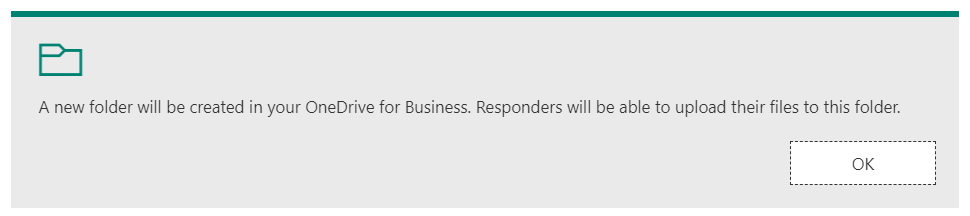
Once this is done, you’ll be able to:
.png)
File Types
You can also add a filter for the file types that users can upload.
To do this, click the ellipsis (…) menu below your question (bottom right) and select File Type.
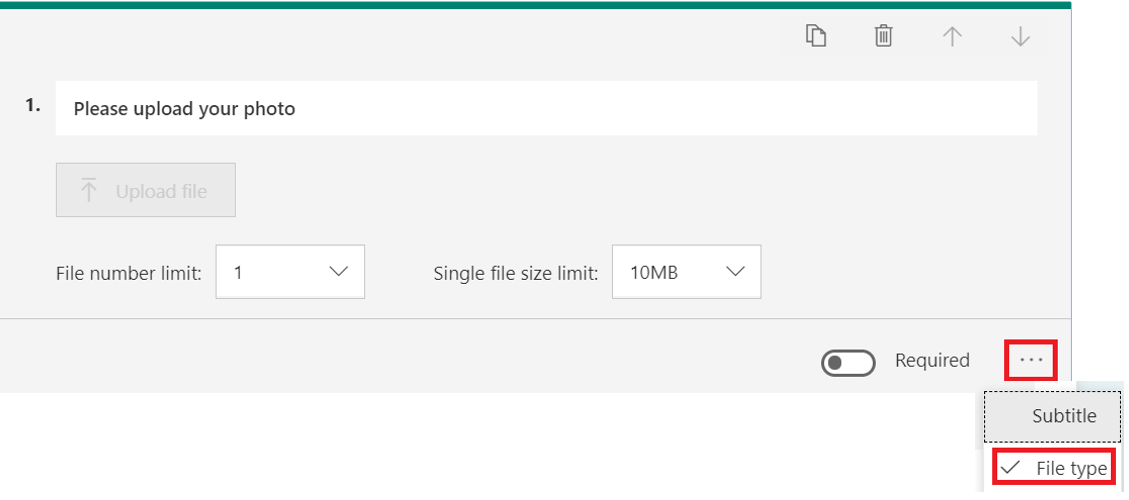
You will now see a row of checkboxes that let you specify which file types can be uploaded by the user.
.png)
Where are these files stored?
The uploaded files can be stored in 2 different places, depending on whether the form is in My Forms or in Group Forms.
.png)
If the form is a personal form (under My Forms),
Note: This folder gets created as soon as you add the question. If you delete the question, the folder does not get deleted. If you move the question order in your form, the folder will not get renamed.
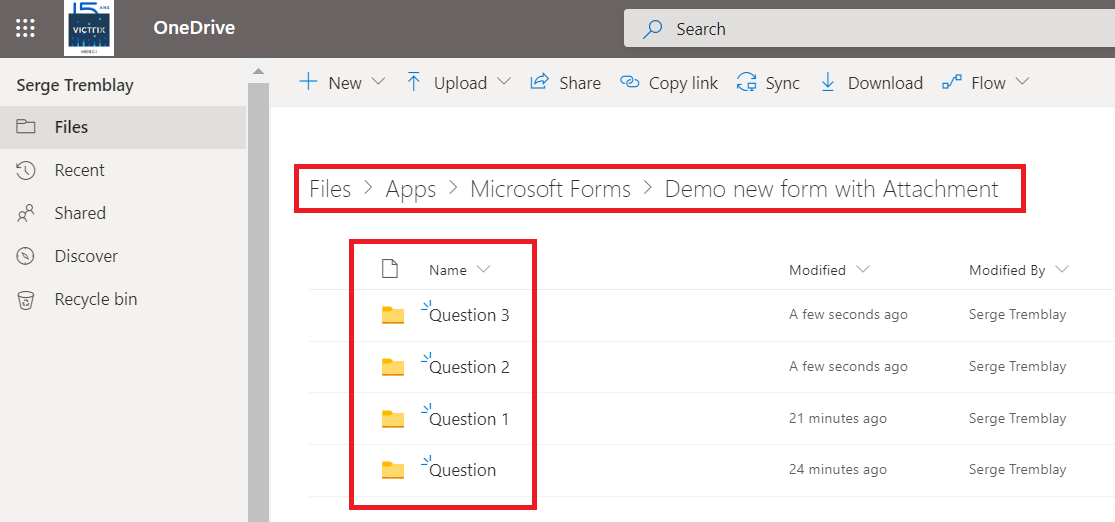
The files are stored in the folder and only you will have access to the files.
.png)
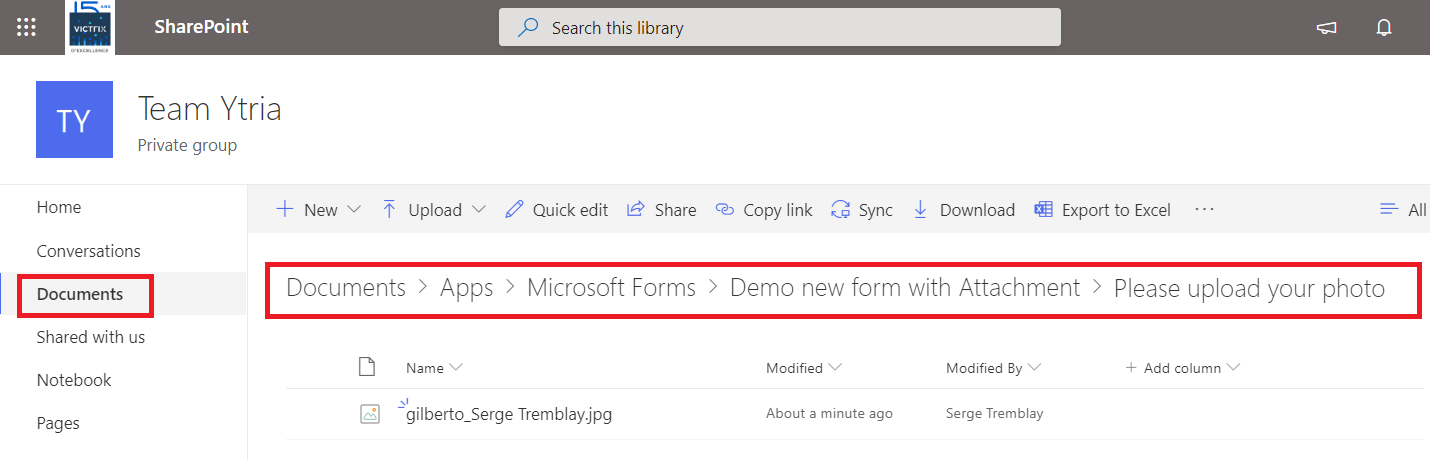
If the form is created as a group form or moved to a group, the uploaded files will be stored in the Documents library of the SharePoint site associated with the Office 365 group to which the form was moved.
Once a file is uploaded, an Apps folder will be created in the Documents library of your SharePoint site. This Apps folder will contain a subfolder called Microsoft Forms, and containing its own subfolder with the same name as your forms.
Inside this folder another folder will be created using the name of the question in your form. The uploaded forms will all be stored in this folder.
So in our example pictured below we have:
Documents/Apps/Microsoft Forms/ Demo new form with Attachment/Please upload your photo.
These files will be accessible to every member of the Office 365 group.
Source: www.ytria.com

12/11/2025


